




OsFinancials TurboCASH Subscription Plugin
Introduction
After purchasing
After your purchase you will receive the activation directly. Follow the instructions to activate your plugin.
How to use of the pluginAfter activating the plugin you can enable the plugin for the set of books you opened. You can enable the plugin in multiple set of books. Go to Tab setup button Tools menu Plugins ->Financials tools->Subscriptions The following screen will show.
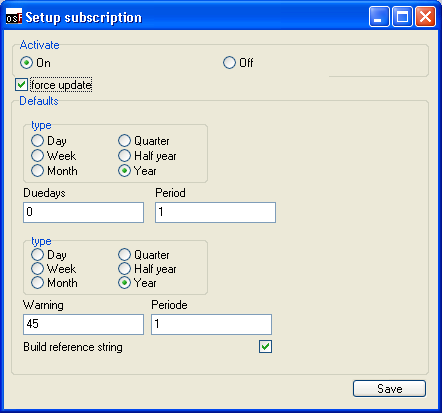
Turn the plugin on by setting the activate to on. Set defaults that will be used when new records are added.
Adding subscription
Search for debtor in the default screen in osFinancials / TurboCASH and edit the debtor You will see a extra tab Subscriptuions where you can add and edit subscriptions for the debtor.
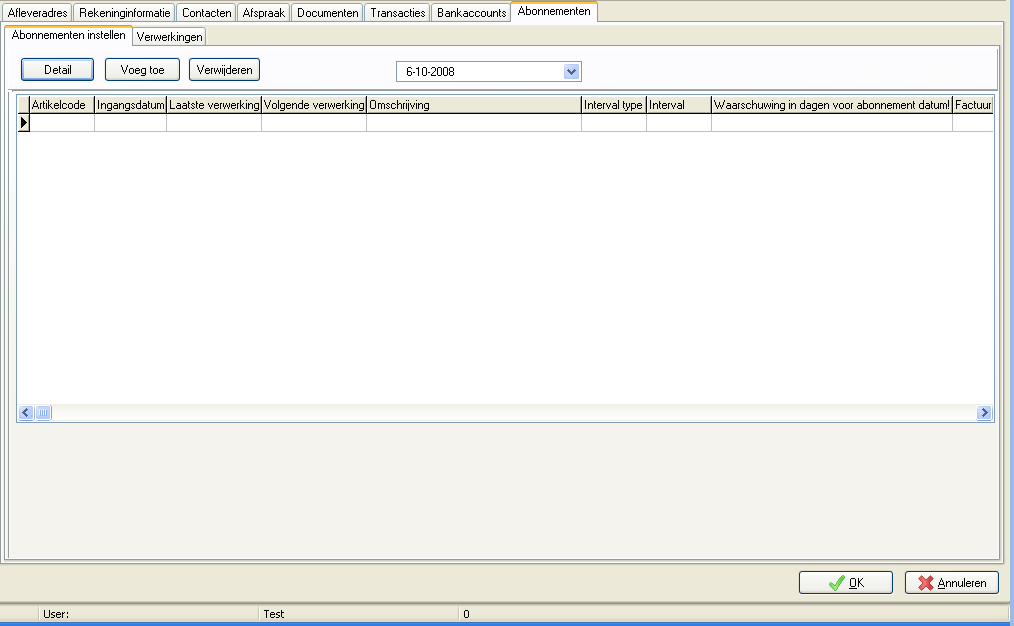
Klick on the button Add to add a new subsription.
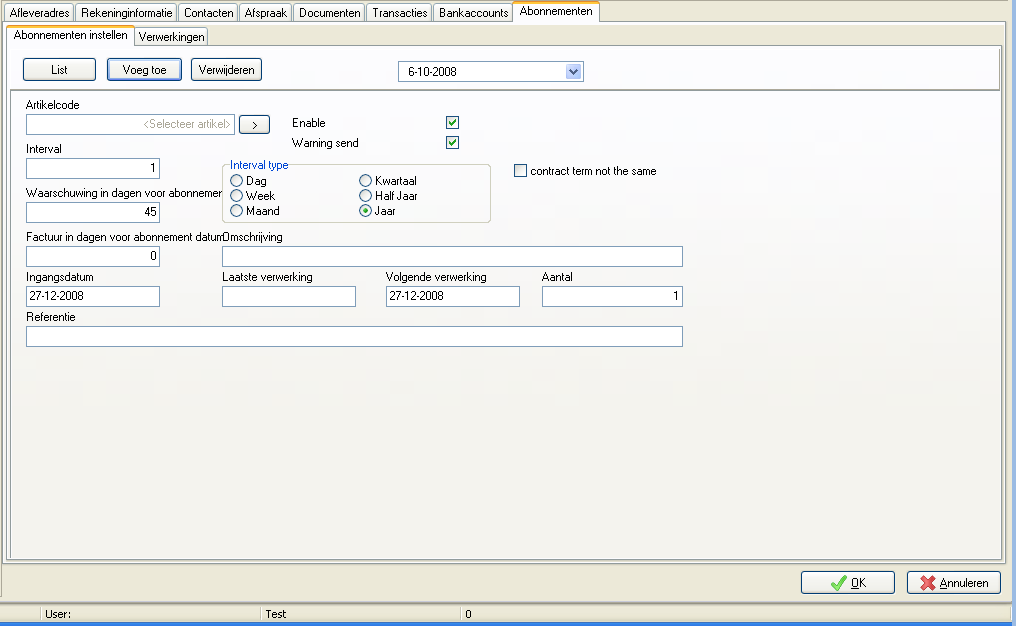
Depending on the setup values the new record will be initialized Select the stock item that will be charged.
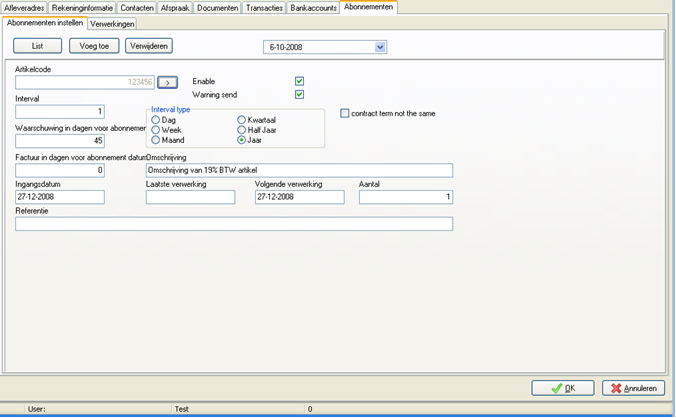
The tick “enable” makes the subscription active so you can have a history record.The tick “Warning send” will show if the warning email is send but the subscription is not yet renewed ”interval” will determinate how many times the selected period is charged. Field ”Warning in day for subscription” is the amount of days before the next subscription date the warning should be send.
The field description will be filled with the default description of the stock item This text will be used when invoicing the subscription. The field Quantity you can set the quantity that is invoiced. The field reference will be a comment in the document this field can make use of variables in the text to get from to dates