
Import / Export tab
The Import / Export tab on the on the Stock item list screen will only be available when the mode in set to Default. In the Advanced mode is not selected, the Import / Export tab will not be displayed.
|
|
The stock item screen may also be launched as a floating screen from the Input → Adjust stock menu on the Default ribbon. |

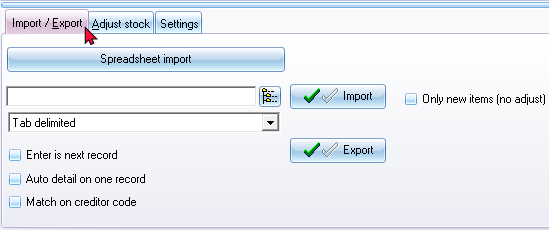
The options, is as follows:
- Spreadsheet export - You may export stock items and save it as a "Excel Workbook (*.xlsx) file type.
- Spreadsheet import - You may import stock items from a saved "Excel Workbook (*.xlsx) file type.
- Export - Create an Export file in the "Tab delimited (*.txt)" (default - recommended).
- Import - Import a valid file exported via the Import option.
- Enter is next record - To be advised.
- Auto detail on one record - To be advised.
- Match on creditor code - To be advised.