
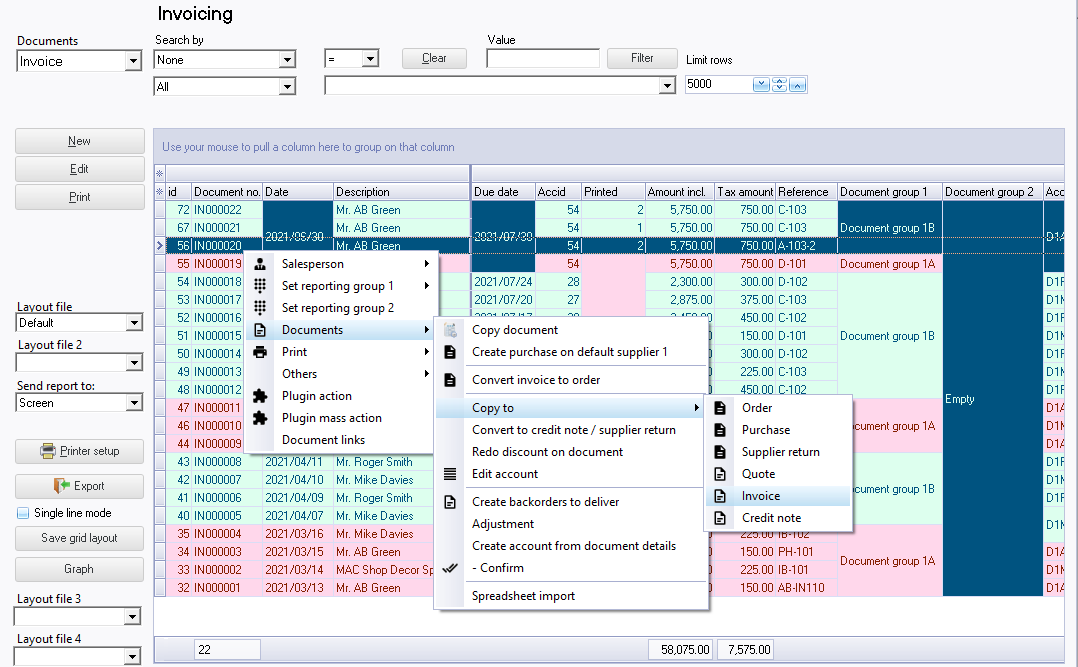
Context menu - Copy to
In addition to the Documents → Copy document option on the context menu of the "Document list" screen, to create exact copies of the selected document(s) of a specific document type, you may also copy any of the documents to another document type.
|
|
If you need to select multiple documents, press the Ctrl or Shift key and click on each document, which you need to copy. |

Right-click and select Documents → Copy to → Invoices, Credit notes, Quotes, Purchases, Supplier returns or Orders option on the context menu.
A confirmation message will be displayed:
"Continue action Copy to Invoice ?" (where Invoice is the selected document type to copy to).
Click Yes to copy the document to the selected document type. New documents for the selected document type will be created.
Once this is done, you may edit / post these documents.
Copy from Invoice to Invoice / Credit note / Quote
Remarks and Comments will also be copied from the source document. You may need to edit these, if your requirements changes.
|
|
Once a document is copied, the selected source document from which it is copied, will be added to the third message line. You need to edit the first and second message line, if required. Note the following:
|


|
|
Comments and remarks The comments and remarks, if added in the source document will be included in the copied document. You may need to check and edit these, if necessary. This is important if specific information for the stock item (such as, for example, series or serial numbers, etc.) may not be applicable in the copied document. |

Copy from Invoice to Purchase / Supplier return / Order
Should you copy an Invoice / Credit note / Quote to a Purchase / Supplier return or Order document, you may need to consider the following and edit, where necessary:

|
|
Comments and remarks The comments and remarks, if added in the source document will be included in the copied document. You may need to check and edit these, if necessary. This is important if specific information for the stock item (such as, for example, series or serial numbers, etc.) may not be applicable in the copied document. |
Copy Sales documents to Purchase documents - Notes
Should you copy an Invoice / Credit note / Quote to a Purchase / Supplier return or Order document, you may need to consider the following and edit, where necessary:
- Change account - Change the debtor (customer / client) account to a creditor (supplier / vendor) account in the Documents → Change account option on the context menu of the "Document entry" list screen.
- Messages - Once a document is copied, the selected source document from which it is copied, will be added to the third message line. You need to edit the first and second message line, if required. Note the following:
- Message lines 1 and 2 - Document message (set in the Setup → Documents setup on the Setup ribbon) will also be added to the copied message of the selected source document.
- Message line 3 - Up to 2 References for Document numbers (e.g. IN000022 (the latest document reference from which the document is copied will automatically be inserted before any existing document numbers on the source document (from which this document is copied). Only 5 digits of the 3 document number will be available..
- Tax - Output tax (VAT/GST/Sales tax) - will be copied - You may need to change this to Input tax (VAT/GST/Sales tax).
- Selling prices - will be copied - You may need to change this to purchase prices.
- Date - The system date will be used. You may edit the date, if required.
Copy Purchase documents to Sales documents - Notes
Should you copy an Purchase / Supplier return / Order to a Invoice / Credit note / Quote, you may need to consider the following and edit, where necessary:
- Change account - Change the creditor (supplier / vendor) account to a debtor (customer / client) account in the Documents → Change account option on the context menu of the "Document entry" list screen.
- Messages - Once a document is copied, the selected source document from which it is copied, will be added to the third message line. You need to edit the first and second message line, if required. Note the following:
- Message lines 1 and 2 - Document message (set in the Setup → Documents setup on the Setup ribbon) will also be added to the copied message of the selected source document.
- Message line 3 - Up to 2 References for Document numbers (e.g. IN000022 (the latest document reference from which the document is copied will automatically be inserted before any existing document numbers on the source document (from which this document is copied). Only 5 digits of the 3 document number will be available..
- Tax - Input tax (VAT/GST/Sales tax) - will be copied - You may need to change this to Output tax (VAT/GST/Sales tax).
- Purchase prices - will be copied - You may need to change this to Selling prices.
- Date - The system date will be used. You may edit the date, if required.