
Batch entry form
The basic layout and principles of the "Batch entry" screen, is as follows:
|
|
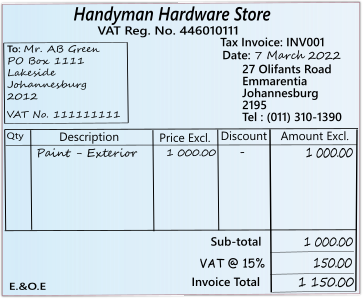
For each transaction, you need a source document from which you will enter the basic information in a Batch entry screen. We would enter the cheque number, date, to whom the payment is made, for what, and the amount of the transaction. |

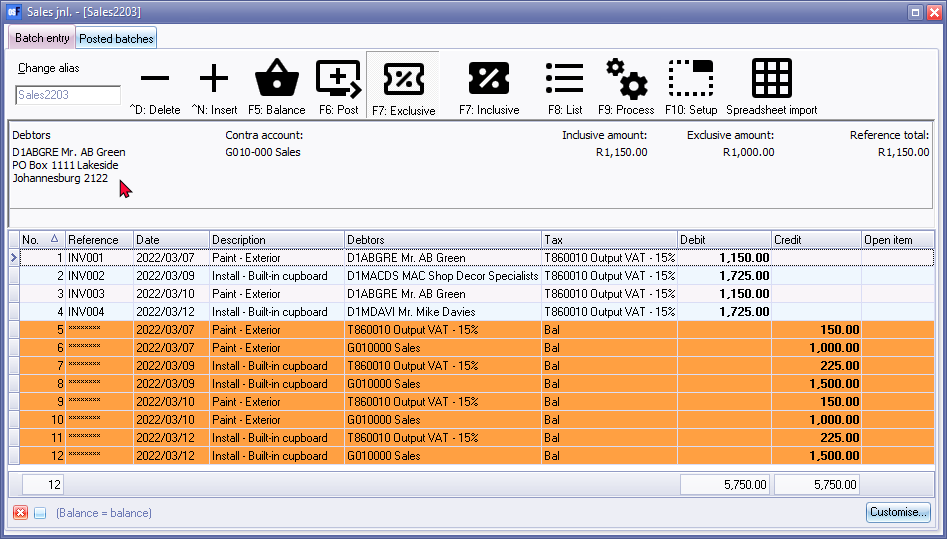
Title bar
Displays the name of the selected batch accessed from the batch type screen. The name of the selected batch [between square brackets in the title bar], may be entered in the Change alias field to reflect the batch name for the specific transactions entered into the selected batch. Once the batch is posted or updated to the ledger, the batch name will make it easier if you need to identify the specific batch to print a batch type report, export the posted transactions in the posted to a file or to reverse the posted batch.
Speed buttons or icons
These speed buttons or icons are conveniently placed below the title bar on the Batch entry screen to allow you to access the most frequently used options with ease. Each of the speed buttons has a shortcut key to access the required option from your keyboard.
^D:Delete - Delete selected transaction(s).
^N:Insert - Select the line or row in which you wish to insert a blank line or row above the selected transaction.. You may then enter a transaction.
F5:Balance - Generate balancing transactions to the contra accounts.
F6:Post - Post (update) transactions to the ledger.
F7:Exclusive - Enter amounts of transactions exclusive of Tax (VAT/GST/Sales tax).
F7:Inclusive - Enter amounts of transactions inclusive of Tax (VAT/GST/Sales tax).
F8:List - After entering all your transactions in a batch, and before updating or posting the transactions to the ledger, you need to print a list of the transactions entered in the batch.
F9:Process - Launches the Batch processing options to select various options to process transactions in unposted batches, export and import functions. Various functionalities to generate and process transactions is also available.
F10:Setup - Sset and configure the "Batch entry" screen for each batch or journal to meet your own specific requirements. The following two (2) options is available:
- Standard tab - In addition to selecting the contra account, various settings and configuration options, you may set the amount entry columns to "Debit, Credit" or "Allow both" to enter amounts faster and more accurately.
- Advanced tab - In addition to various settings and configuration options, the "Account code lookup type" and "Contra account lookup type" may be set to list only those accounts to select from in the Accounts lookup when processing transactions.
Spreadsheet import - osFinancials5 supports the "Excel Workbook (*.xlsx) file type Spreadsheet import and export feature.
- Spreadsheet export - You may export unposted batch transactions and save it as a "Excel Workbook (*.xlsx) file type.
- Spreadsheet import - You may import batch transactions from a saved "Excel Workbook (*.xlsx) file type.
Column headings and rows
Column headings
Show where to enter the basic information:
|
Column heading |
Description |
|
Reference number: |
The number of the document, which contains the details of the transaction. It may be a cheque, deposit, receipt, invoice, etc. |
|
Date: |
The date of the transaction. This date must be a valid date within any accounting period within a financial year. |
|
Description: |
A brief description of the details of the transaction. |
|
Account: |
The account which must be debited or credited with the transaction. |
|
Tax: |
The tax account - the correct tax code must be selected if you are registered as a VAT/GST/Sales Tax Vendor and / or if VAT/GST/Sales Tax is not applicable to an entry or transaction. The Tax amount will be calculated automatically based on the percentage of the selected tax code. If you are not registered as a VAT/GST/Sales Tax Vendor, and / or if VAT/GST/Sales Tax is not applicable to all the transactions in the batch or journal, you may select to hide the Tax column for the specific batch or journal. |
|
Amount: |
The amount of the transaction. if VAT/GST/Sales Tax is applicable, it may be inclusive or exclusive of Tax (VAT/GST/Sales Tax), |
Rows
For each source document or transaction you need to enter the basic information in a row on the Batch entry screen.
|
|
Should you, for example, make one payment or issue a cheque for petrol and repairs and wish to allocate the petrol to one account and the repairs to another account, you need to enter each of these items (parts of a transaction) in 2 separate rows. You will still need to use one reference number (same cheque number) for both transactions. You will then have one source document (cheque) with 2 entries representing 2 transactions with the same party. |

|
|
The descriptions entered in the description fields should be entered sensibly; they should enable anybody to determine the origin and nature of the transaction. |